

Transcriber User Manual (Transcriber 1.4.4)
User manual of Transcriber 1.4.1
1. Startup
-
1.1. Working environment
1.2. Starting the tool
1.3. Initial configuration
2. Windows
-
2.1. Menu bar
2.2. Transcription
2.3. Button bar
2.4. Signal and segmentation
3. Transcription file
-
3.1. Create a new transcription
3.2. Read a transcription
3.3. Save the transcription
3.4. Export to another format
3.5. Revert to previous version
3.6. Automatic backup
3.7. Backup file
3.8. File encoding
4. Signal file
-
4.1. Open a signal file
4.2. Sound file format
4.3. Signal shape
4.4. Open a remote file
5. Signal management
-
5.1. Position the cursor
5.2. Select part of the signal
5.3. Signal playback
5.4. Segment playback
5.5. Fast forward
5.6. Go to next segment
5.7. Chang
5.8. Vertical zoom
6. Edition
-
6.1. Cut/Copy/Paste
6.2. Undo
6.3. Find/Replace
6.4. Glossary
6.5. Automatic space handling
6.6. Spell checking
6.7. Accented characters and internationalization
7. Episode
8. Segmentation
-
8.1 Insert a boundary
8.2 Suppress a boundary
8.3 Move the boundary between two segments
8.4 Select the signal over one or several segments
8.5 Hide/Show a segmentation
9. Speech turns and speakers
-
9.1. Create a new turn
9.2. Overlapping speech
9.3. Edit or suppress a turn
9.4. Find one speaker's turn
9.5. Import speakers from another file
9.6. Suppress unused speakers
10. Sections and topics
-
10.1. Create a new section
10.2. Edit or suppress a section
10.3. Find sections about a topic
10.4. Import topics from another file
10.5. Suppress unused topics
11. Background noise
-
11.1 Create a background mark
11.2 Indicate the change or the end of a background noise
11.3 Edit or suppress a background noise mark
12. Events and comments
-
12.1 Insert an event
12.2 Insert the beginning and the end of an event
12.3 Insert a comment
12.4 Edit or suppress an event
12.5 Copy/Paste an event
12.6 Create a keyboard shortcut for an event
12.7 Edit the event list
12.8 Configure events display
13. Keyboard shortcuts
-
13.1. Define a shortcut
13.2. Shortcut for currently used expression
13.3. Shortcut for an event
14. Options and interface configuration
-
14.1. Transcriber's name
14.2. Productivity monitoring
14.3. Colors edition
14.4. Fonts edition
14.5. Localization of the interface
14.6 Second signal view
14.7. Show/Hide central button bar
14.8. Save the options
15. Other features
-
15.1. Informations about the signal and the
transcription
15.2. Quit Transcriber
15.3. Help
1. Startup
1.1. Working environment
The software is meant to allow the transcription of long duration audio signals with standard hardware. For instance, several one hour long recordings (sampled at 16 kHz on 16 bits, mono) were already successfully transcribed with a PC/Pentium 200MHz under Linux. Using headphones is strongly recommended for a quality transcription, but loudspeakers may be useful for checking with other people.
1.2. Starting the tool
When Transcriber is correctly installed, it can be started with the command:
transor, depending on the configuration, by clicking a given menu or icon.
A dialog box then proposes to select a sound file to create a new transcription
associated with this signal, or a transcription file to display or modify it.
A short example of signal with an associated transcription are available in the
demo/ directory, distributed with the software.
It is also possible to start the tool and give it the signal and/or
transcription file as arguments on the command line. If both files are in the
same directory, have the same name (except for the extension) and if the signal
file has a standard extension (like .wav or .snd), the name
of the signal file can be omitted, as it will be automatically opened:
trans demo/frint980428.xml1.3. Initial configuration
After the first use of the tool, it is recommended to open the
[Options]/[General...] menu and to fill in:
-
the scribe's name, which will become the default scribe saved in each
new transcription;
-
the language of the software interface (currently English or French);
-
if necessary, the name of the file used to record the informations on
production monitoring - the default state of this function is disabled
(cf. chapter on productivity monitoring);
and more signal specific options, in the menu
[Options]/[Audio file...] :
The options should then be saved with the menu
[Options]/[Save configuration].
2. Windows
2.1 Menu bar

2.2. Transcription
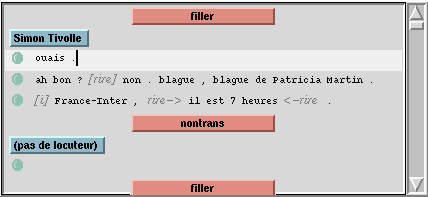
In the upper side of the interface, the orthographic transcription of the signal can be typed in a text editor.
- for each new section (change of topic, of emission...), there is a
button in the middle of a line (default color orange);
- for each new speech turn (change of speaker, or no speaker), there
is a button at the left of a line (default color blue);
- for each segment in the orthographic transcription, a little circle
(default color green) appears to the left of the line.
Each segmentation begins at time t=0; there is at least a section, a turn and a segment on the first 3 lines of the transcription. The line containing the cursor is highlighted. There is a scrollbar to the right.
2.3. Button bar
In the middle, a button bar (which can be hidden) gives shortcuts for signal playback or for information display and shows the current filenames.

Available commands:
 : back to segment
beginning or go to previous segment
: back to segment
beginning or go to previous segment
 : fast backward (with
1/2 second step)
: fast backward (with
1/2 second step)
 : pause
 : play
 : fast forward (with 1/2
second step)
: fast forward (with 1/2
second step)
 : go to next segment
 : display information window
about signal and transcription
: display information window
about signal and transcription
2.4. Signal and segmentation
Signal and segmentation appear in the lower half; there is also a scrollbar for choosing the part of the signal to display and another smaller scrollbar (which can be hidden with a contextual menu) for resolution control.
Under the signal, the segmentations (orthographic one, in speech turns, in sections, in background conditions) is displayed and synchronized with the signal; the current segment in the orthographic transcription is highlighted.
A second view of the signal in a different resolution can be displayed. Current cursor position in the signal is shown with a vertical red bar. Both cursors (in the text editor and in the signal) are always synchronized so that the current segment in the text is the same as the current segment under the signal; as soon as one cursor enter another segment, the other one is automatically moved in order to appear in the same segment.
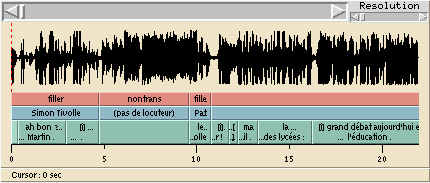
On the signal, mouse controls are the following:
- click button 1: set cursor to the given position
- click-move button 1: select part of the signal
- click button 2 (or shift-click button 1): extend the selection
- click button 3: display a contextual menu
On the segmentation lines, mouse controls are:
- click button 1: select the signal on the extent of the segment
- click-move button 1: select the signal over several segments
- shift-click button 1: extend the selection
- click-move button 2 (or control-click-move button 1): move the boundary
between 2 segments
- click button 3: display a contextual menu
3. Transcription file
3.1. Create a new transcription
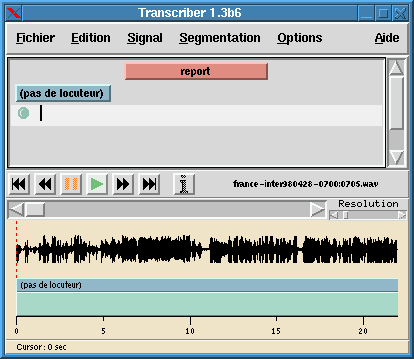
Choose menu [File]/[New trans]. A dialog window ask
for the sound file to be transcribed. This can be changed later.
3.2. Read a transcription
With [File]/[Open trans...], you can read transcription
files produced by Transcriber, and transcription or segmentation files in some
standard formats identified by the filename suffix:
- Native XML format (
.trs, .xml)- OGI lola (
.lola)- LDC .typ format (
.typ)- ESPS/xwaves (
.lab)- LIMSI label (
.lbl)- TIMIT format (
.phn, .wrd, .txt)- Childes/CHAT (
.cha) experimental support, with new attributes available in
the interface.The signal file associated with the transcription is then searched for; if it is not automatically found, the user is asked to look for it.
3.4. Save the transcription
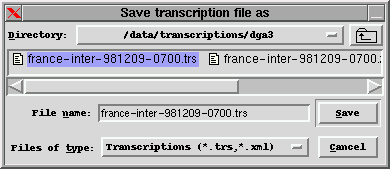
The transcription can be saved with menu [File]/[Save]
if modifications occurred since creation or last save. The first time, transcription
filename defaults to signal filename with .trs extension. It can
be saved later under another name with [File]/[Save as...].
3.5. Export to another format
The transcription can be written into non-native transcription formats
(.typ, .stm or .html) with menu
[File]/[Export], but these formats are not as complete as the
native one, and information can be lost in the process. However
.html format makes printing the transcription
possible using any browser.
3.6. Revert to previous version
Command [File]/[Revert] will undo all changes in memory
and load lastly saved version on disk.
3.7. Automatic backup

An automatic backup is performed within a fixed time after a modification
(if the transcription has not been saved in between). It is saved in the
same directory as the transcription with the same name surrounded with
# character (for example, /data/transcription/#radio.trs#).
This file will be removed the next time the transcription is regularly
saved. Time interval is given within window [Options]/[General...];
if it is zero, no automatic backup occurs.
3.8. Backup file

When a previously existing transcription is read on the disk, then modified
and saved, the existing version is kept in a file with the same name as
the transcription followed by a string given by the user in the window
[Options]/[General...] (for example, ~ will /data/transcription/radio.trs~).
If the field is empty, the previous file is not kept.
3.9. File encoding
Since Transcriber 1.4.1 under Tcl/Tk 8.1.1 or higher, the encoding for file
output can be chosen in [Options]/[General...].
It defaults to ISO-8859-1 (Latin1) but can be changed to other widespread
8 bits encodings (ISO-8859-*, EUC-JP...) but also to Unicode (saved as
UTF-8, which is backward compatible with 7 bits US-ASCII). If Latin1
does not work and you are not sure what to use, try UTF-8 as it supersedes the
other ones.
Upon reading,
the encoding used is the one defined in the file header. For transcriptions
missing this information (like the ones produced with earlier versions of
Transcriber or Tcl/Tk), or when the encoding is not ASCII-compatible, the current encoding is used.
4. Signal file
4.1. Open a signal file
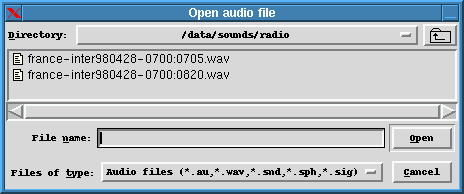
The signal file is chosen after creation of a new transcription or by
changing the signal linked to the transcription with menu [File]/[Open
audio file...].
4.2 Sound file format
Most standard audio files are automatically recognized thanks to Snack
library: WAV, AU, SND, AIFF, SMP, and Sphere if the format has been installed
with Snack. Access to MP3 format can be slow due to the compression. Headerless
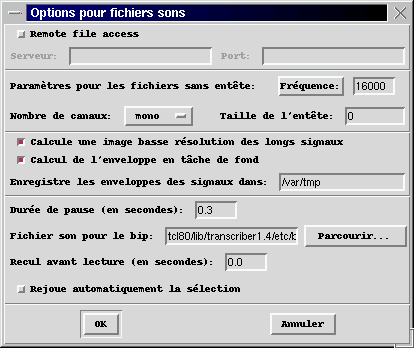
sound files format (8 or 16 bits sample length, byte order...) is
automatically guessed, except for sample frequency and channel count which
are given by the user in the window [Options]/[Audio file...].
4.3. Signal shape
In order to speed up signal display at lower resolutions (display of intervals over than 30 seconds), a low-resolution shape of the whole signal is computed if the signal is longer than 30 seconds.
Shape computation
is performed in background the first time a signal is displayed, and is
stored in a specific directory for subsequent uses. Current computation
can be stopped, or the function can be disabled in [Options]/[Audio
file...]. Background computation mode can be disabled.
The directory
for storing shapes is also given in [Options]/[Audio file...];
it can be a good idea to use a directory shared by all Transcriber's users
but it must then be writable to all users in order to allow creation of
new shapes.
4.4. Open a remote file
The client-server architecture for sound display and playback can be
enabled by configuring the script tcl/SoundServer.tcl and launching
it on the host. User choice of remote server and port is done within [Options]/[Audio
file...].
5. Signal management
During transcription, one has to listen several times to short portions
of signal. Tape-recorder-like commands are available in the command button
bar as long as in the menu [Signal], but keyboard shortcuts will
probably more practical for most intensive use.
5.1. Position the cursor
One can place the cursor in the signal with a mouse click on the wished
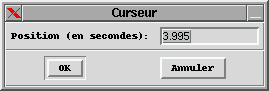
position. A precise value can be given with menu [Signal]/[Go
to...]/[Position] or by clicking on the information line
under the signal.
5.2. Select part of the signal
Part of signal can be selected by click-move-release of the left mouse
button, and it can be extended with central button (or shift-click of the
left button). Cursor position and selection boundary times are given under
the signal. With option Automatic selection playback option on
in [Options]/[General...], selected segment playback
starts as soon as mouse button is released.

5.3. Signal playback
With play and pause
buttons, command [Signal]/[Play/Pause] or its shortcut
Tab, one can start playback at cursor position or stop it. If
a selection is active, only this part will be played.
The menu [Signal]/[Playback mode] allows a choice between
the following playback modes: continuous play (default mode), playback with
pauses at segment boundaries, with a beep at boundaries, with a pause at the
next boundary, or loop on the current selection if active, otherwise on the
current segment after a pause. The duration of the pause and the selection of
an audio file for the beep are customizable in the window
[Options]/[Audio file...]; the parameter
Go back before playing allows to rewind before each new playback.
When Snack version 2.0 is installed with Transcriber, it is possible to
play only the left or right channel from a stereo file using the new menu
[Signal]/[Stereo channel]. It has no effects for mono sound files or
when previous Snack version 1.7 is used.
5.4. Segment playback
Command [Signal]/[Play segment] or its shortcuts (Shift-Tab
or Alt-Tab) launches playback of the current segment from its
beginning up to its end.
5.5. Fast forward
Fast forward and backward
buttons (menu [Signal]/[Go
to...]/[Forward] or [Backward]) make the signal
cursor move half a second forward or backward. If mouse button is kept
down on the command button, move becomes continuous with 0.5 second step.
This does even work during playback - but sound becomes choppy.
5.6. Go to next segment
Next and previous
buttons (menu [Signal]/[Go
to...]/[Previous] or [Next]) move cursor to the
beginning of next or previous segment in the orthographic segmentation
(even during playback which jumps to its new position).
5.6 Change the sound level
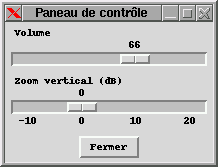
Sound level is given (from 0 to100) in the window [Signal]/[Control
panel].
5.7. Vertical zoom
For signal with low dynamic, a cursor in [Signal]/[Control
panel] changes vertical amplitude on the signal. Volume is not modified.
6. Edition
6.1. Cut/Copy/Paste
Standard editing commands (menu [Edit]/[Copy], [Cut]
or [Paste] and standard shortcuts Control-x/c/v) can
be used to handle parts of the transcription, including events but not
section, turn or background buttons.
6.2. Undo
Undo command (menu [Edit]/[Undo] or standard shortcut Control-z)
is limited, and only restores orthographic transcription of the current
segment to its previous state. A lot of actions are not undoable. Save
often.
6.3. Find/Replace
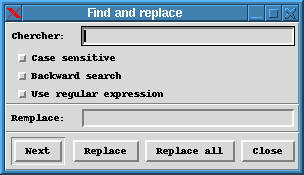
Command [Edit]/[Find/Replace] (shortcut Control-f)
has various options: case sensitive, backward search, use regular expressions.
A replacement string can be given.
6.4. Glossary
Command [Edit]/[Glossary] or its shortcut Control-k
has two modes: create a new entry in the glossary, or insert an existing
entry in the editor at current position; modification of existing entries
is possible in both modes. If part of the text is selected when the command
is called, creation of a new entry is proposed from this selection; a comment
can be added and choose OK in order to register it. If no text
was selected, one can click and select an entry in the list then click Insert;
the entry will be inserted in the current position. Glossary is currently
kept within configuration file but will probably switch to a separate file
in a future version.
6.5. Automatic space handling

Automatic space handling is controlled within [Options]/[General...].
If it is active, a space is added at the end of line upon creation of a
new breakpoint and before punctuation symbols .,; or :.
6.6 Spell checking
Spell checking is started by the command [Edit]/[Spell
checking]. It relies on the installation of the aspell software
(standard on most Unix systems but not with Windows). The dictionary used for
the correction is automatically deduced from the language selected in the
global options . An error message indicates if the
dictionary was not found or if the name does not match; it is then necessary to
check your local installation of Aspell to determine the correct name
of the dictionary.
When an unknown word is found, a dialog box proposes to:
-
add it to the dictionary - it will then be memorized forever;
ignore and go to next word;
replace the selected word by one of the selections, or after manual correction;
close the window and stop the spell checking.
An option of the menu [Options]/[General]
allows to control the spell checking on words starting with a capital
letter. The default behavior is to ignore them.
6.7. Accented characters and internationalization
The character input method is not selected in Transcriber but is system-dependent. Thus, with an appropriate keyboard, some characters can be input directly. Unix system allows you to remap some keyboard keys (like for instance function keys) with software tools like 'xmodmap' for X11. However it is also possible to input accentuated characters from keys combinations by defining shortcuts in Transcriber .
The default encoding of transcription files is ISO-8859-1 (Latin1),
but other encodings are available if Transcriber is run with a version of
Tcl/Tk at least 8.1.1.
7. Episode
7.1. Edit global parameters
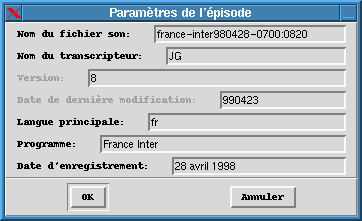
Some global informations about transcription can be given in [File]/[Edit
episode attributes...]:
- filename of sound being transcribed (without path or extension), which
allows automatically finding the signal if it doesn't bear the same name
as the transcription;
- the transcriber's name, which is used as default name upon creation
of a new transcription;
- version of the transcription, which is automatically incremented and
can't be edited;
- last modifications date, automatically updated and not editable;
- the program (emission, radio...);
- the recording date if it is known;
- the main language of the transcription.
8. Segmentation
8.1. Insert a breakpoint
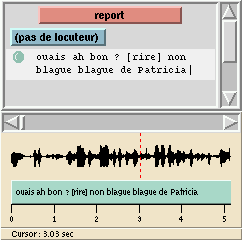
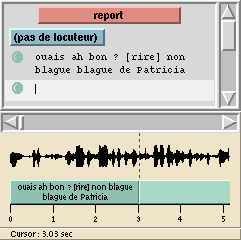
Command [Segmentation]/[Insert breakpoint] or its
shortcut Return create a new breakpoint at current cursor position
in the text and in the signal. Boundary positions are rounded to the nearest
milli-second, so any new breakpoint must be at least 1 ms away from existing
ones. A new line appears in the transcription, and segment is sliced at
cursor position. This can be done during playback.
 =>
=> 
8.2. Suppress a breakpoint
Command [Segmentation]/[Delete breakpoint] or its
shortcut Shift-Backspace suppress the breakpoint at the beginning
of current segment and fold its content with previous segment. If the breakpoint
was also the beginning of a new turn or a new section, they are also removed.
8.3. Move the boundary between two segments
By clicking with central mouse button (or with left button with Control
key pressed) over a boundary between two segments and moving the mouse,
one can move the boundary and the one which are synchronized in other segmentations.
8.4. Select the signal over one or several segments
With a click of the left mouse button over a segment under the signal,
the signal is selected over the extent of the segment, and signal cursor
moves at the beginning of the segment. The selection can be extended with
Shift click of left button.
8.5. Hide/Show a segmentation
With a click of right button, a contextual menu appears and gives commands for signal playback, resolution, and showing or hiding each segmentation.
9. Speech turns and speakers
9.1.Create a new turn
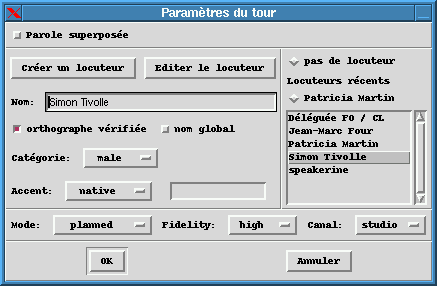
Command [Segmentation]/[Create turn...] or its shortcut
Control-t creates a new speech turn from the beginning of current
segment. A speech turn is described by it(s) speaker(s) and other optional
parameters:
- elocution mode (spontaneous or planned),
- recording quality (high, medium, low),
- bandwidth of signal (telephonic speech or studio recording).
First line of the window is for overlapping speech (see next section).
Central part is for creation, selection or modification of speakers. By
clicking on Create Speaker or by typing directly a new name, a
new speaker is created; one can further describe its type, dialect... A
sorted list of already defined speakers appears to the right, with a selection
of recently used speakers. By clicking on a name, the speaker is chosen
as speaker for the turn. Spelling of its name and other characteristics
can be modified after a click on Modify Speaker, and then validating
with OK; the changes will apply to the whole transcription. The
field no speaker can be chosen for signal segments without speech.
9.2. Overlapping speech
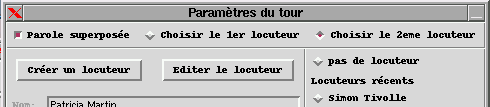
During creation or modification of turn parameters, overlapping
speech can be activated. Second speaker can be chosen the same way
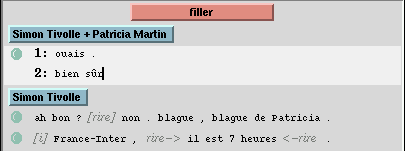
as the first one. In the text editor, each segment contains 2 lines beginning
with 1 or 2; orthographic segmentation under the signal
is split horizontally for each speaker. Return to non-overlapping speech
is done by deactivating the overlapping speech field in turn
parameters; only first speaker is kept and transcriptions of both are merged
in one single text.
9.3. Edit or suppress a turn

Command [Segmentation]/[Edit turn attributes...] allows
for edition and destruction of the speech turn which contains current segment
(even if the current segment is not the first segment of the turn). Alternatively,
one can click on the turn button in the editor window. All parameters given
during creation can be modified. A button allows destruction of the turn.
9.4. Find one speaker's turns
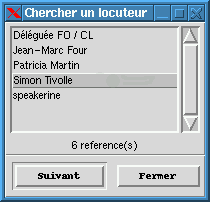
Command [Edit]/[Speakers]/[Find speaker]
displays the list of speakers in the transcription. By clicking on the
name, number of occurrences of this speaker in the transcription is shown
under the list. Next button moves to the next speech turn of the
speaker.
9.5. Import speakers from another file
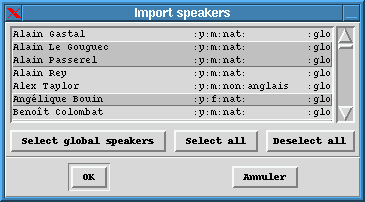
Command [Edit]/[Speakers]/[Import from file...]
asks for a transcription file and displays the list of speakers within
this file which doesn't yet exist in the current transcription. User can
select/unselect speakers by clicking on its name, or select one speakers
which Global name field is on.
9.6. Suppress unused speakers
Command [Edit]/[Speakers]/[Remove unused speakers]
suppress any speakers which doesn't appear in any speech turn.
10. Sections and topics
10.1. Create a new section
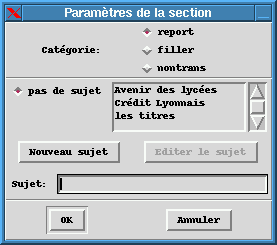
Command [Segmentation]/[Create section...] or its
shortcut Control-e creates a new section at beginning of current
segment. Section type ("report", "filler" or "nontrans")
and topic can be chosen in the dialog window. Already defined topics list
is on the right, recently used ones are on the left. Click New topic
or type in directly a text to define a new topic. If an existing topic
is selected, one can click Modify topic and edit it, then choose
OK. You can choose no topic or empty the Topic
field. A new speech turn is automatically created at the beginning of the
section; the current speaker is proposed as default value.
10.2. Edit or suppress a section
Command [Segmentation]/[Edit section attributes...]
allows edition and suppression of the section which contains the current
segment. One can also click on the chosen section button in the text editor.
All section parameters can be modified, and a button allows for section
destruction.
10.3. Find sections about a topic
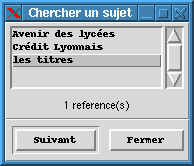
Command [Edit]/[Topics]/[Find topic] displays
a list of already defined topics. Click on a topic and its count will appear
under the list. Next button moves to the next section about the
topic.
10.4. Import topics from another file
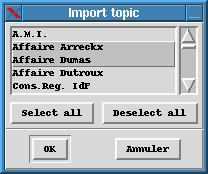
Command [Edit]/[Topics]/[Import from file...]
ask for a transcription file and displays a list of new topics. User can
select/deselect topics by clicking on their name.
10.5. Suppress unused topics
Command [Edit]/[Topics]/[Remove unused topics]
suppress unused topics from the list.
11. Background noise
The segmentation in acoustic conditions if for lasting modifications in background noises. The marks are for a change in background state; their value replace the previous one. Each transcriptions begins with an empty background condition at t=0.
11.1 Create a background mark
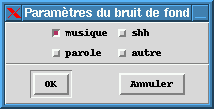
Command [Segmentation]/[Insert background] creates
a background mark at current cursor position in the signal. It is not allowed
to create two marks at the same time index. If the cursor in the signal
is at the beginning of the segment, background mark will always be synchronized
with segment beginning, and background icon appears at the beginning of
line. Background type (speech, music, electric noise, other) is chosen;
value defaults to previous one. A music icon appears in the editor at current
position of the cursor. Background segmentation under the signal is colored
(grey default color) on signal parts with noise.
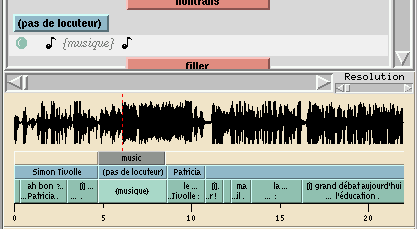
11.2. Indicate the change or the end of a background noise
Create at the position of the end of noise a new background mark with all noise types empty. For a noise change, don't mark the end of the previous noise, but only the new one which replaces the previous one.
11.3. Edit or suppress a background noise mark
Background noise marks can be edited or suppressed by clicking on the music icon in the editor. If it is deleted, current background conditions become the ones defined in the previous background mark.
12. Events and comments
12.1. Insert an event
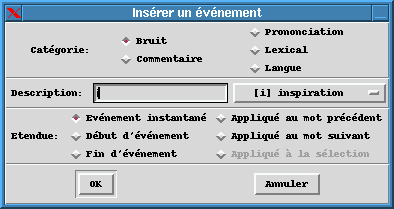
Command [Edit]/[Insert event] or Control-d
pops up a window for defining:
- event type: noise, comment, pronunciation mark, lexical mark,
language change;
- description of the event. A list of predefined values can be available
to the right;
- temporal extent of the event (except for comments); an event can be
instantaneous or have an extent. In this last case, start and end of events
must be given. A mark can also apply to the previous or the following word.
12.2. Insert the beginning and the end of an event
If a part of text is selected before the insertion of the event, beginning and end of event marks are simultaneously inserted
12.3. Insert a comment
[Edit]/[Insert comment] inserts a comment event. Comments
have no temporal extent.
12.4. Edit or suppress an event
Click on the event in the text editor and edit or destroy the event. Events can also be deleted in the text editor like a single character.
12.5. Copy/Paste an event
Within Transcriber, events can be copied/pasted. When pasted in other applications, event marks will appear as XML tags.
12.6. Create a keyboard shortcut for an event
See shortcut section
12.7. Edit the default event list
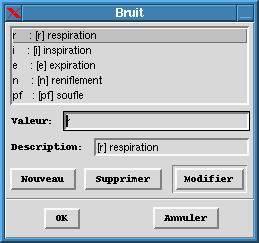
Noise list, pronunciation marks, lexical marks or language list can
be edited with [Options]/[Events]/[Edit * list...].
Value will appear in the editor and in the segmentation; description appears
in the menu with list of predefined events. An empty line is a separator
in the menu. For language list, iso639 codes should be used for consistency.
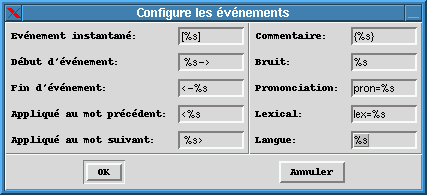
12.8. Configure events display
Fonts and colors for event display can be modified with menus [Options]/[Fonts]/[Events]
and [Options]/[Colors...] ; format string for comment
and events, and for event extent are chosen in window [Options]/[Events]/[Events
display...].
13. Keyboard shortcuts
Menu [Options]/[Bindings...] pops-up a window for
edition, suppression or creation of bindings.
13.1. Define a shortcut
Click New in [Options]/[Bindings...] for creation
of a new shortcut, then type in keyboard combination in the first field,
replacement string in the second and click OK (end of edition)
or Modify (before other editions). Keyboard combination can be
directly typed with Control, Shift, Alt... if
cursor is in the Keystrokes field. Be careful, you can override
predefined menu shortcuts.
13.2. Shortcut for a currently used expression
Select currently used expression with mouse in the text editor, then
choose menu [Options]/[Bindings...], give wished Keystrokes
and click OK. Shortcut can also consist in the first letters of
the expression, e.g. "gor" will be replaced with "Gorbatchev".
These shortcuts are not related to the glossary.
13.3. Shortcut for an event
Events (noise, comment, etc.) can be generated with a shortcut. Create an event of the wished kind in the text editor, select it and follow the previous instructions. Selected text can be any combination of regular text and one or several events.

14. Options and interface configuration
14.1. Transcriber's name

Default transcriber's name is given in [Options]/[General...].
It is used in episode parameters initialization when creating a new transcription.
14.2. Productivity monitoring

A filename for transcriber's productivity monitoring can be given in
[Options]/[General...]. By default, the field is empty
and function is disabled. When it is active, work duration is traced (without
pauses), as long as produced work (number of new sections, turns, words...);
it is displayed in window [File]/[Informations] and saved
in the logging file at the end of the session. No automatic exploitation
of these file is currently performed by the software.
14.3. Colors edition
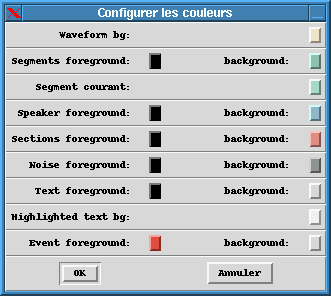
Most colors can be modified with menu [Options]/[Colors...].
14.4. Fonts edition
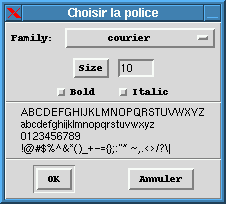
Fonts used for text display are modified with menu [Options]/[Fonts].
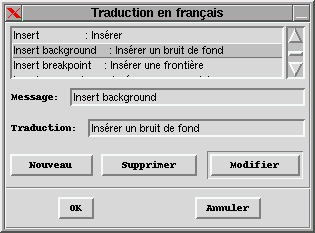
14.5. Localization of the interface

Language for the interface is chosen in [Options]/[General...].
It defaults to English, and French is available. Localization in new language
can be created. When no localization is available, the original English
message is kept. As soon as non-localized messages are displayed, they
are added to the list of messages to be localized. In order to keep your
localization, give a Localization file name in [Options]/[General...]
and choose [Options]/[Save configuration].
14.6. Second signal view
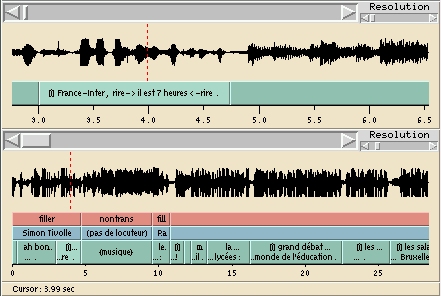
Menu [Options]/[Display]/[Second signal view]
shows or hide a second view of the signal, which can be displayed at another
resolution. Resizing the window can be necessary for a correct display.
14.7. Show/Hide central button bar
Central button bar display is switched on/off with [Options]/[Display]/[Command
buttons].
14.8. Save the options
Modified options, window positions, keyboard shortcuts, glossary content
and currently edited filenames are saved with command [Options]/[Save
configuration] in a configuration file (defaults to ~/.transcriber);
this file is read at startup and currently edited files will be automatically
reopen at beginning of next session.
15. Other features
15.1. Informations about the signal and the transcription
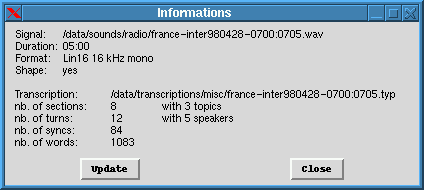
Button or command [File]/[Informations]
displays a window with informations about signal filename, duration, word
count, etc. Click update button for an update of the informations.
15.2. Quit Transcriber
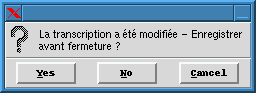
Menu [File]/[Quit] or Control-q ; save of
the transcription is proposed if necessary. If corresponding option is
activated, save of the configuration is also proposed.
15.3. Help
Online help is available with menu [Help] ; help files can
also be viewed with any HTML browser with frames